Sharing consent
What do you need?
From a computer
This method is used when you're on a computer and have your phone at hand to confirm the sharing.
Sign in to TrustMe
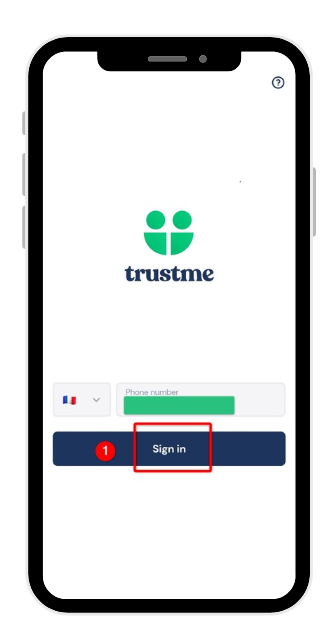
On your phone, open the TrustMe app and tap Sign in to access your account.
Open the scanner
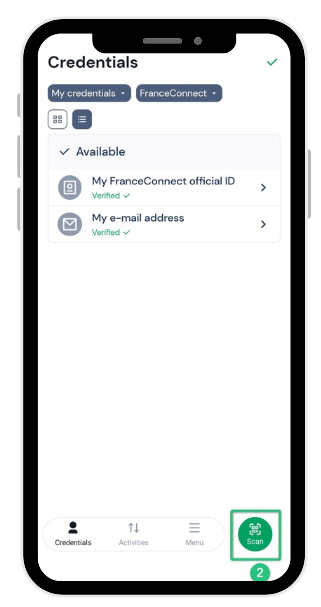
From the app's home screen, tap the Scan button at the bottom right.
Choose TrustMe on the site you're signing in to
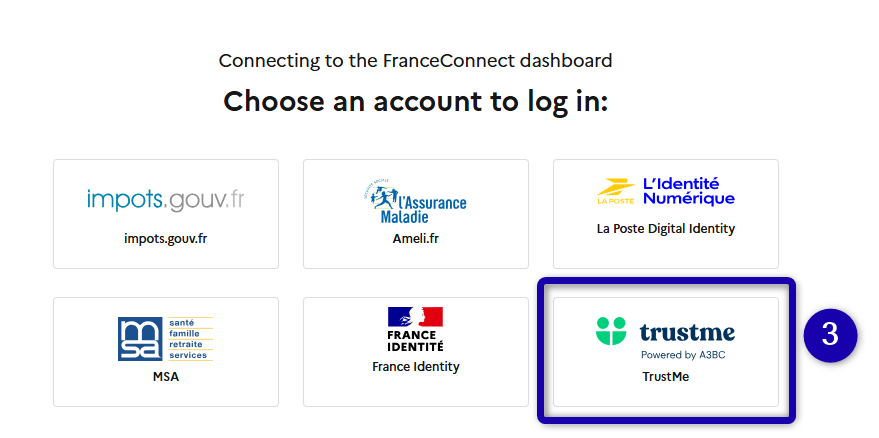
On your computer, go to the site you want to sign in to or share your information with. In our example, this is a French government website using FranceConnect, but it could also be one of our private partners' websites.
Click FranceConnect, then choose TrustMe to continue.
Scan the QR code
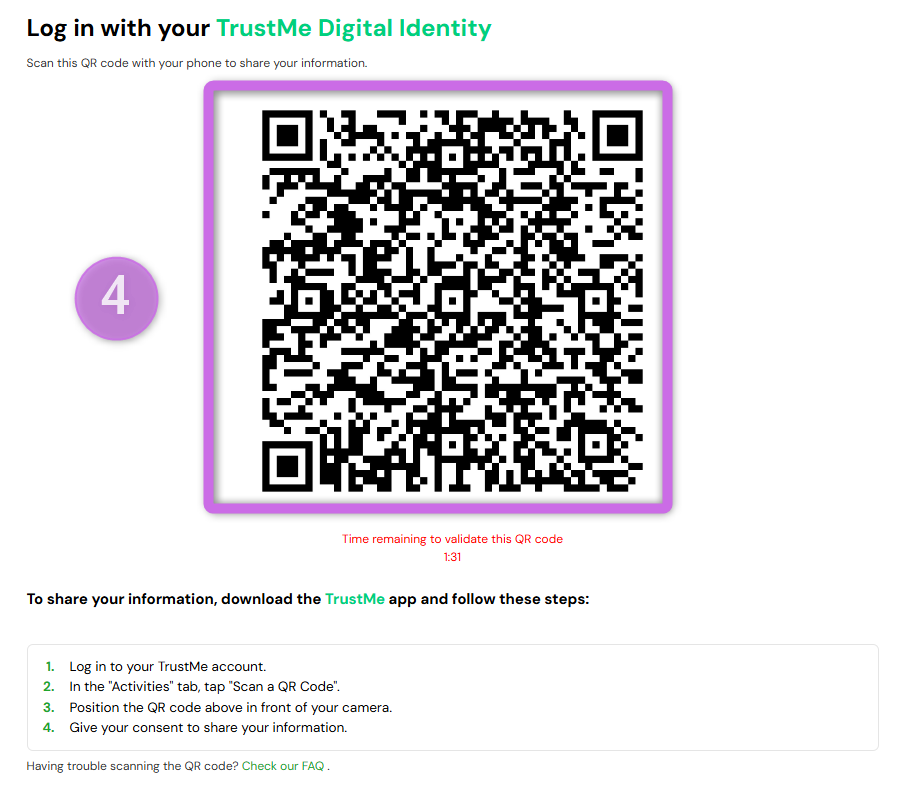
A QR code appears on your computer screen. Scan it with your phone using the TrustMe scanner that's already open.
Confirm the sharing on your phone
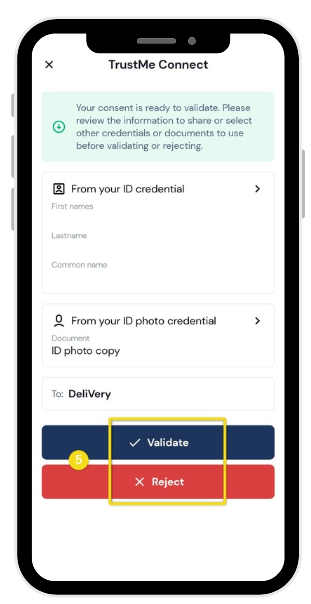
A page opens on your phone showing the details of the information you're about to share. Check it, then:
- tap Confirm to authorize the sharing;
- or Decline if you don't want to continue.
If you confirm, your computer automatically shows the sign-in (or sharing) confirmation on the site you scanned.
Find your sharing history
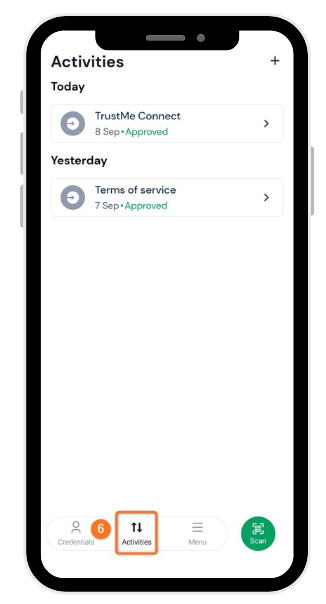
To view the list of all sharing transactions made through TrustMe, tap Activity at the bottom of the screen. You'll find each transaction there, sorted by month; click one to see its details.
From your mobile phone
You can also do everything directly from your phone, without a computer. The principle is the same, with a small variation.
Go to the relevant website
Directly from your phone, go to the site you want to sign in to or share your information with (for example, tap FranceConnect then select TrustMe).
Tap "Open TrustMe"
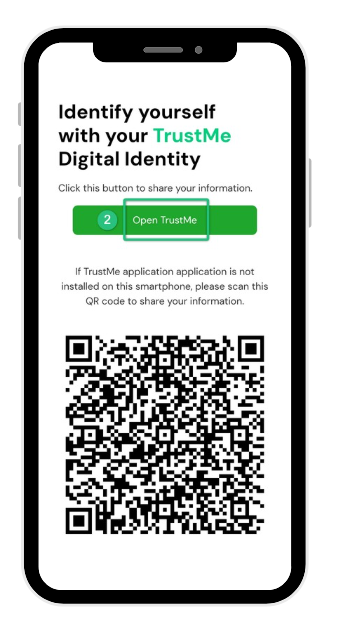
A green Open TrustMe banner appears: tap it to automatically launch your TrustMe app. If the app isn't installed on your phone, you can instead scan the QR code shown just below.
Sign in to your account
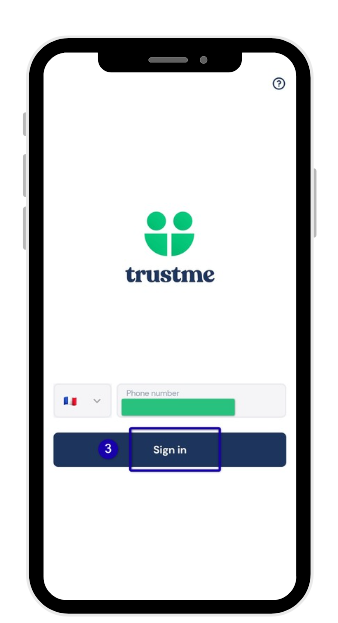
The TrustMe app opens automatically. Sign in to your account if you haven't already.
Confirm or decline the sharing
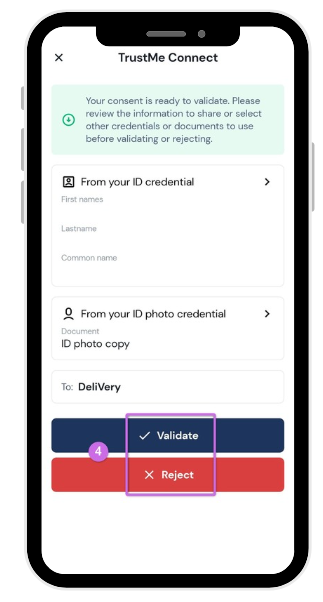
Just like from a computer, check the information to be shared, then tap Confirm or Decline.
Return to the relevant website
Exit the TrustMe app and return to the website page where you started. The sign-in or sharing will have been completed automatically while you were away.
Find your sharing history
The process is identical to the one described above: tap Activity at the bottom of the screen to view all your sharing transactions.